A home screen
of your own.
Arrange apps, HDMI inputs and wallpaper
with this open-source Android TV launcher.
Android 5.0 and later
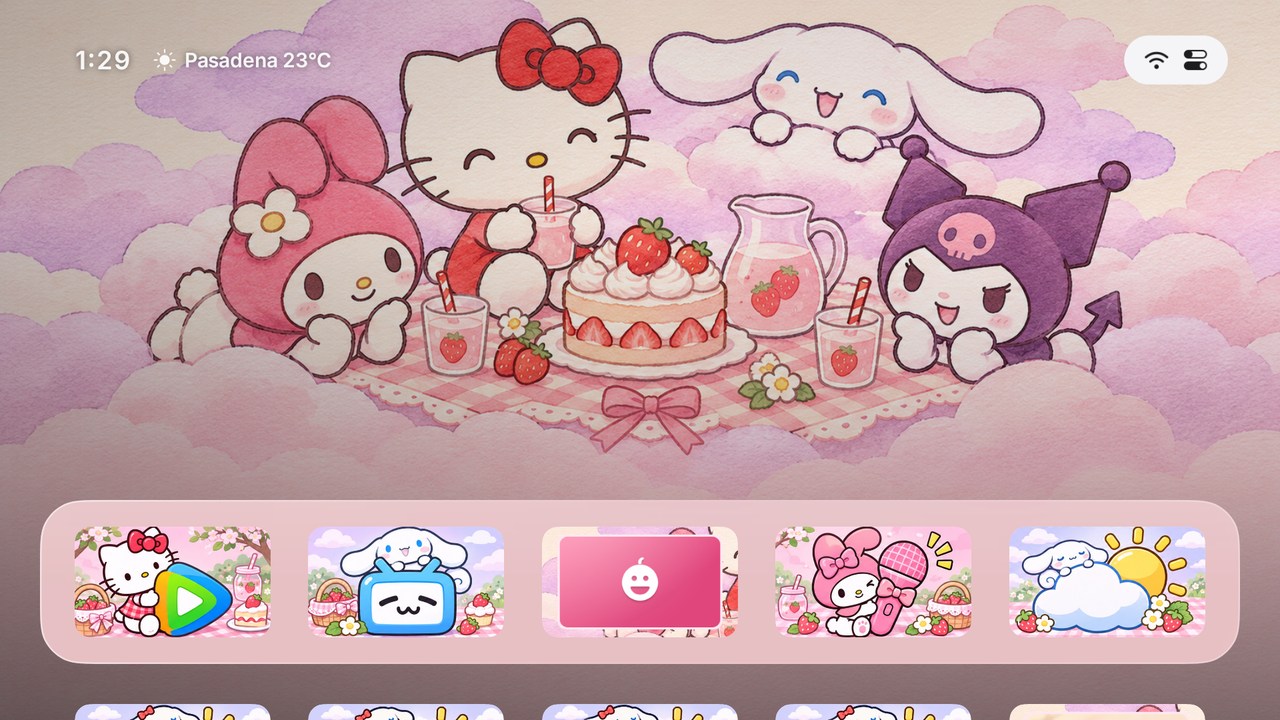
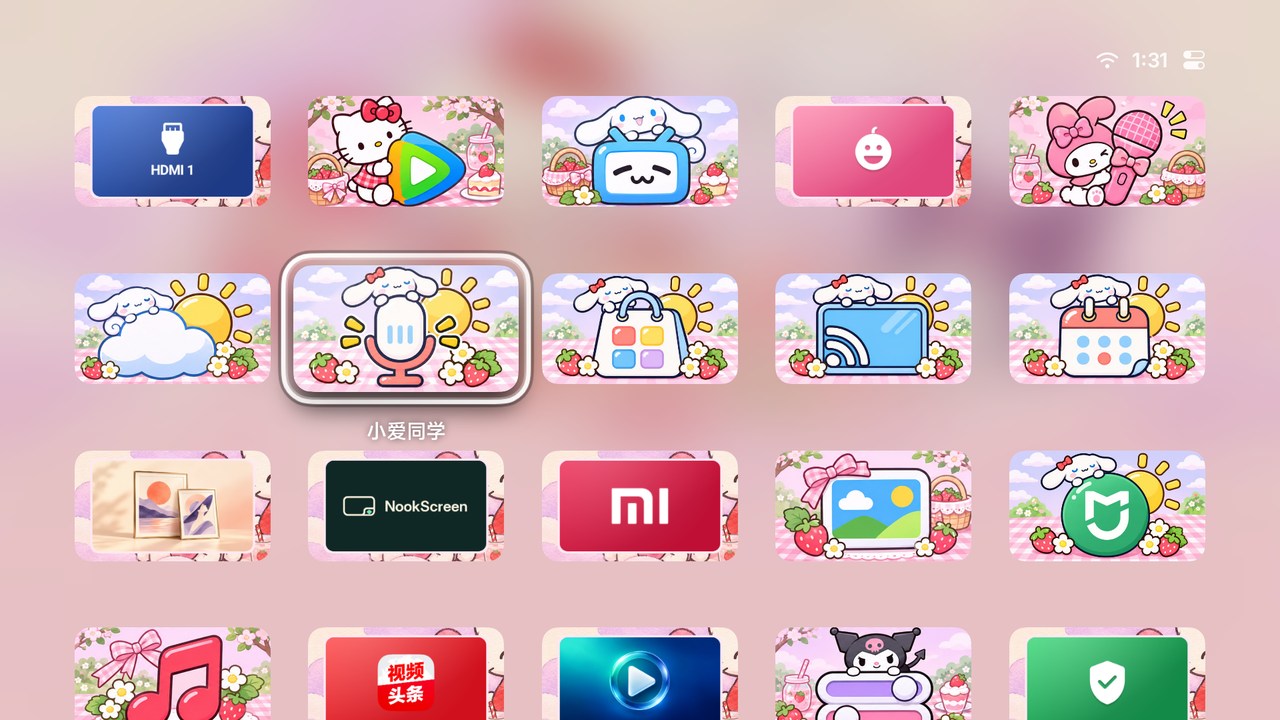
One TV, different layouts.
Keep streaming apps handy for movies and HDMI for games. Each scene keeps its layout and appearance across restarts.
- Arrange with the remote
- Hold OK to move a tile, hide an app or make a folder.
- Customize from your phone
- Scan the setup code to upload photos and app artwork over Wi-Fi.
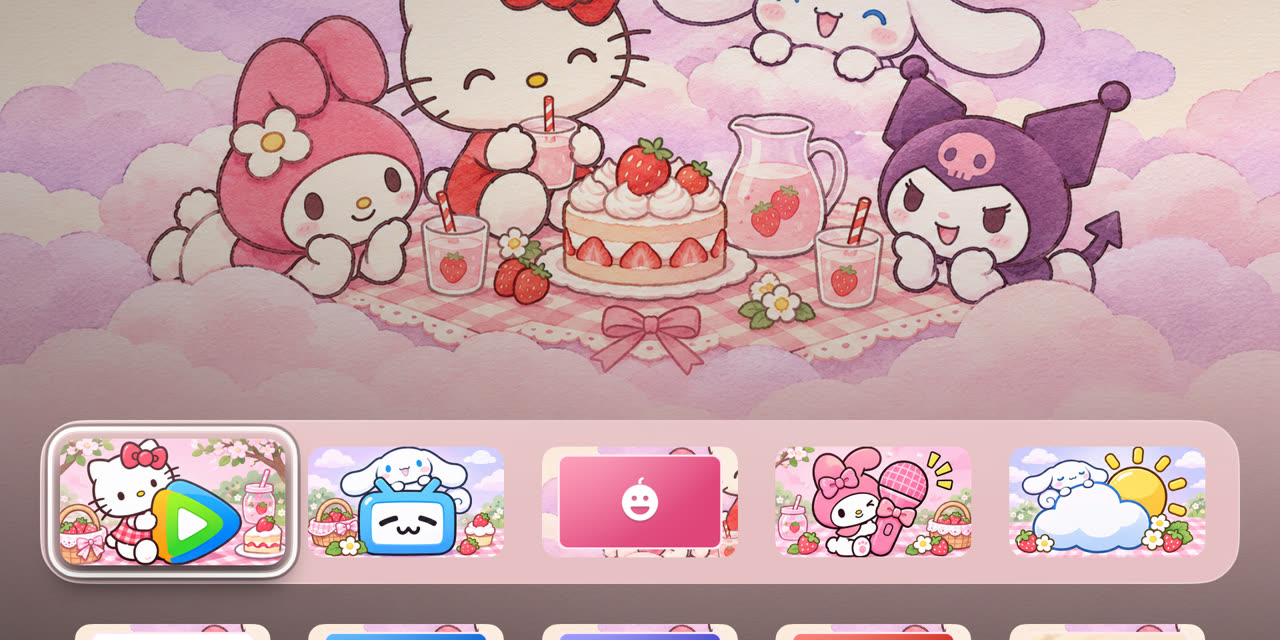
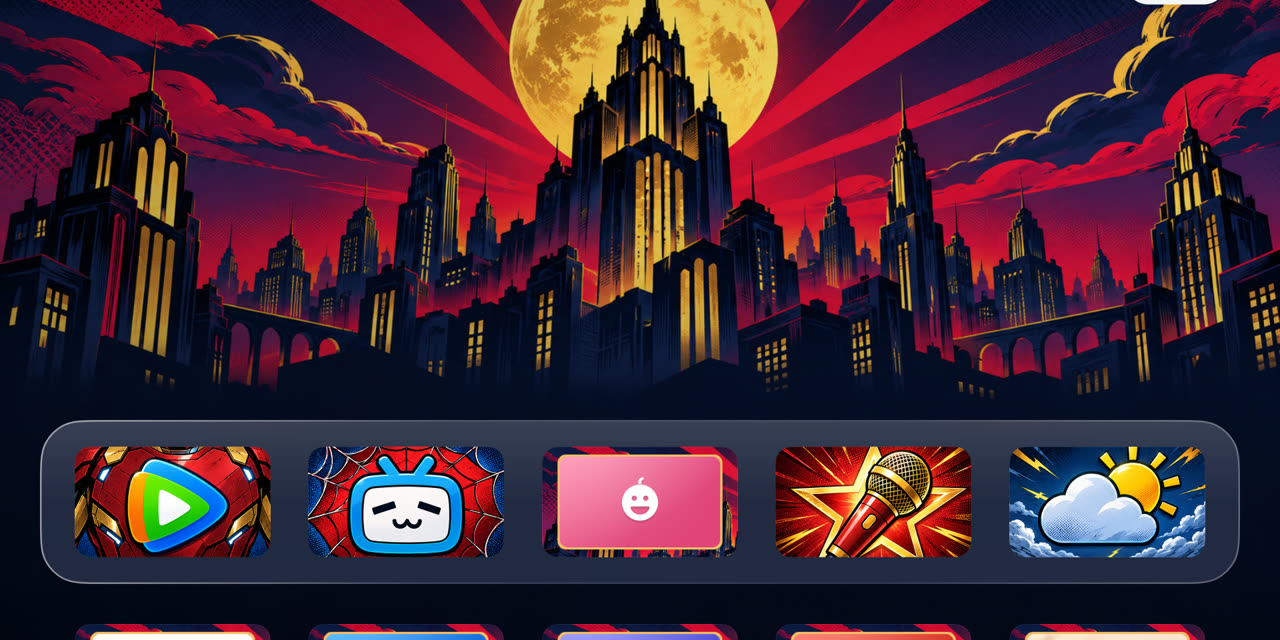
Change the look from Control Center.
Download and apply a theme with its own wallpaper and app tiles.
What’s new in v0.0.9
- Hide screensaver place names and titles
- Turn them off from the TV or phone setup page. The clock has its own switch.
- Switch back to the TV’s own screensaver
- Choose System to restore the system screensaver if NookScreen turned it off.
- Automatic weather retries
- When the weather service is temporarily unavailable, NookScreen retries while Home or the screensaver stays on.
Try it on your TV.
Android 5.0 and later. Home and HDMI support vary by firmware.
- Copy the APK to USB and install it from the TV’s file manager.
- Open NookScreen. Press ↑, then OK on the status button for Control Center.
- Set NookScreen as the default Home app in Android settings, or use Make NookScreen Your Home Screen.
Install with an AI agent
Use an agent that can run terminal commands on a computer on the same local network as your TV. Enable debugging with the device-specific ADB notes and note the TV’s connection IP and port. Copy the prompt below and fill in the bracketed fields.
Install the stable NookScreen APK on my Android TV using ADB. The TV model is [model] and its debugging address is [IP:port].
Download the official APK from this URL
https://github.com/Vanlee0129/nookscreen/releases/latest/download/nookscreen-daily.apk
Connect to the TV, verify the target with adb devices -l, and target it with adb -s in subsequent commands. Prompt me if pairing or approval is required.
Use install -r to preserve existing NookScreen data. Stop and report any signature conflict, downgrade, or installation error.
Open NookScreen and verify the package ID app.nookscreen.tv and the installed version. I’ll choose the default Home app and accessibility settings on the TV.
Use the remote to confirm that NookScreen Home opens. Follow step 3 above if you want to make it your default Home app.